DNX Mouse Tools
A downloadable tool
DNX Mouse Tools
Control your windows across multiple monitors with simple mouse actions
Update 1.1.0
Fixed some windows not moving, and generating some weird reaction.
Why DNX Mouse Tools?
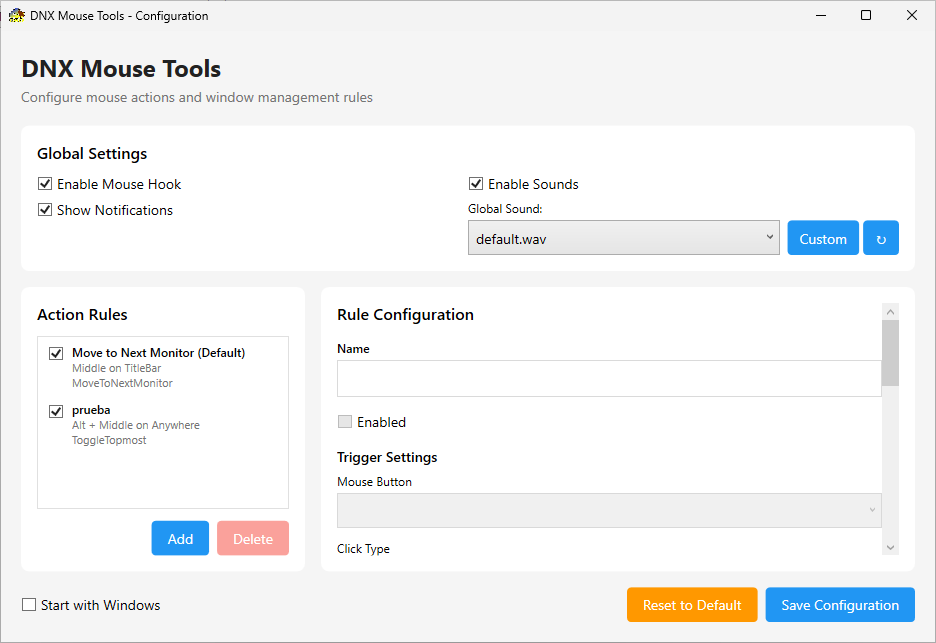
Managing windows across multiple monitors can be tedious. Dragging windows between screens, clicking tiny buttons to maximize or minimize, searching for the always-on-top option... DNX Mouse Tools solves this with customizable mouse actions.
Define your own rules: middle-click on a title bar to move a window to the next monitor, Ctrl+middle-click to toggle always-on-top, Shift+middle-click to minimize. Simple, fast, efficient.
Key Features
- Multi-Monitor Management - Move windows between monitors with a single click
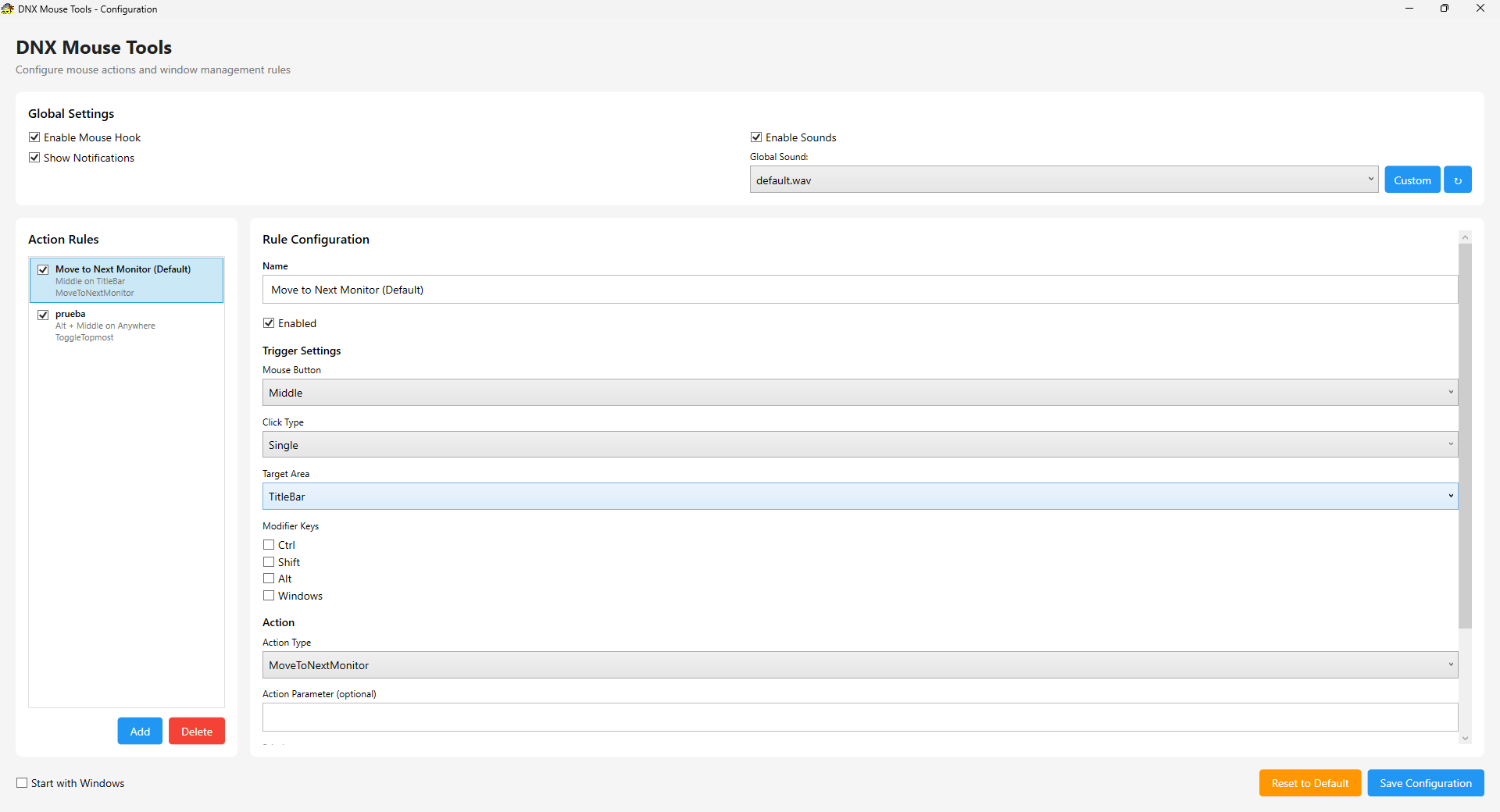
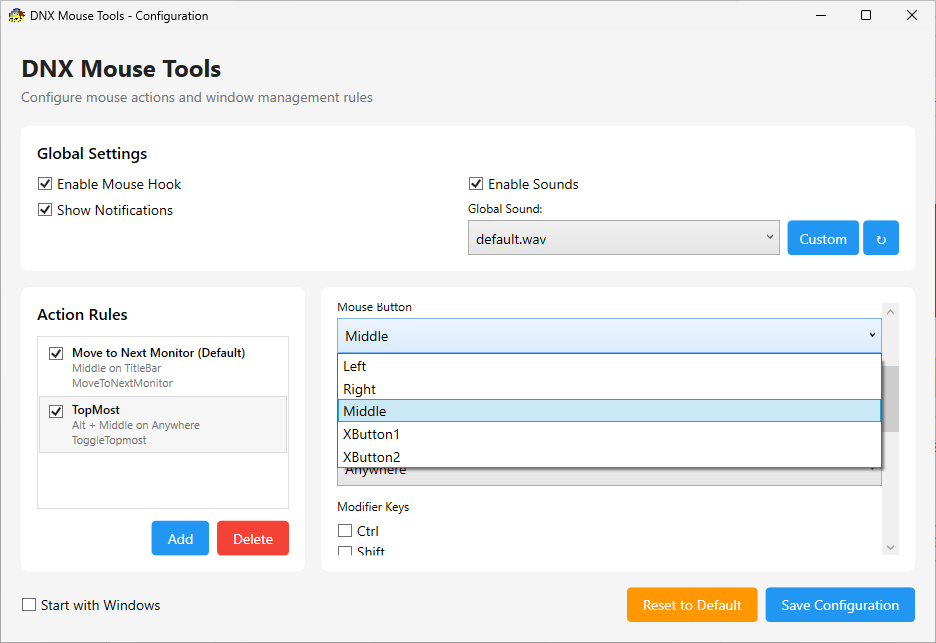
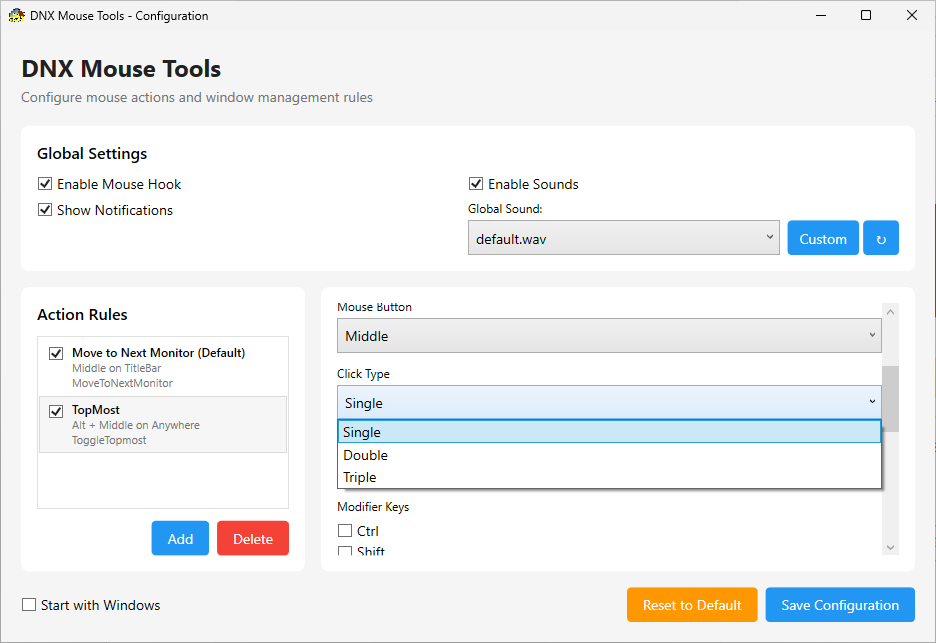
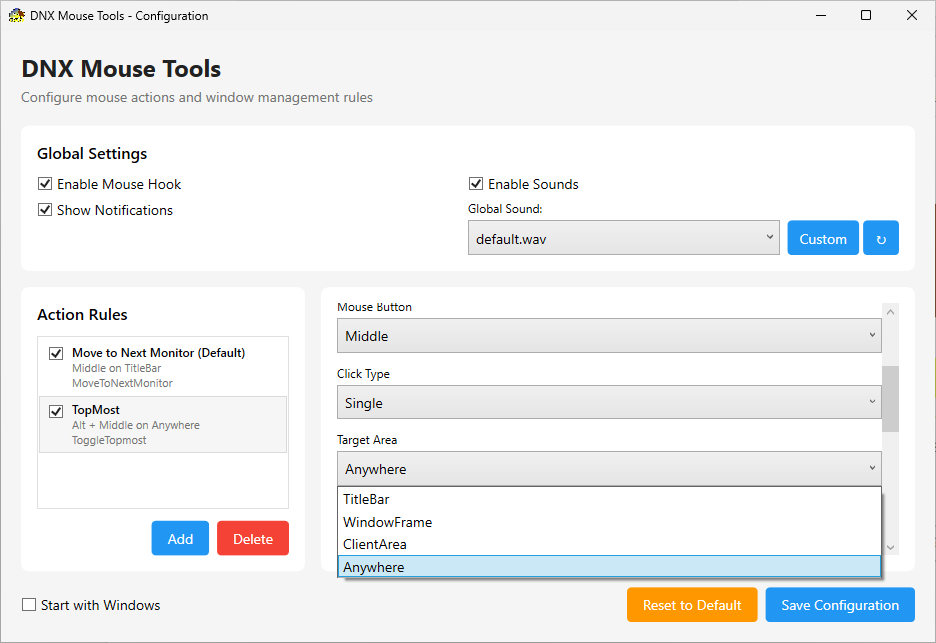
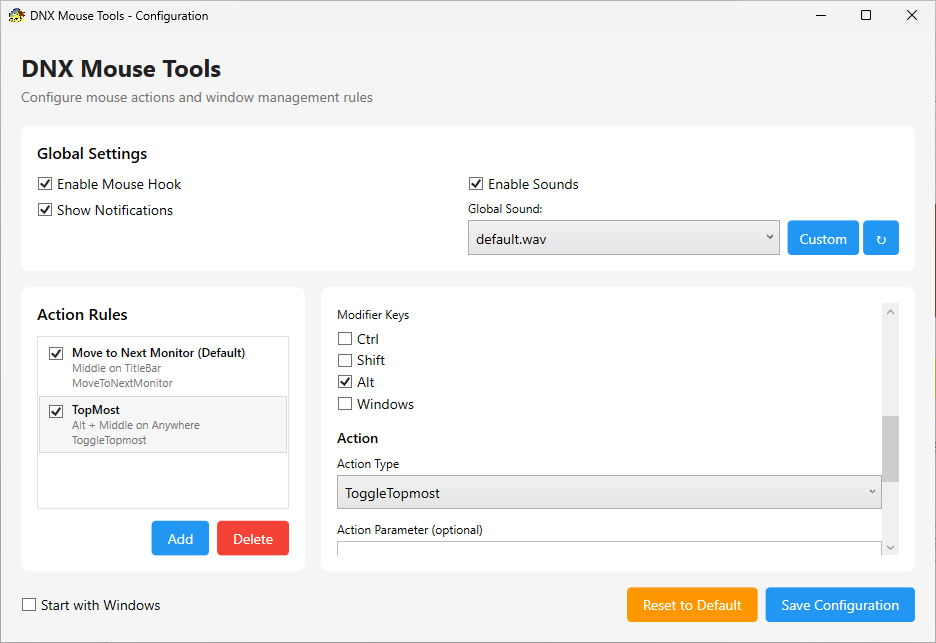
- Fully Configurable Rules - Combine mouse buttons (left, right, middle, X1, X2) with modifiers (Ctrl, Shift, Alt, Win)
- Multiple Actions - Move to next/previous/specific monitor, toggle always-on-top, minimize, maximize, close
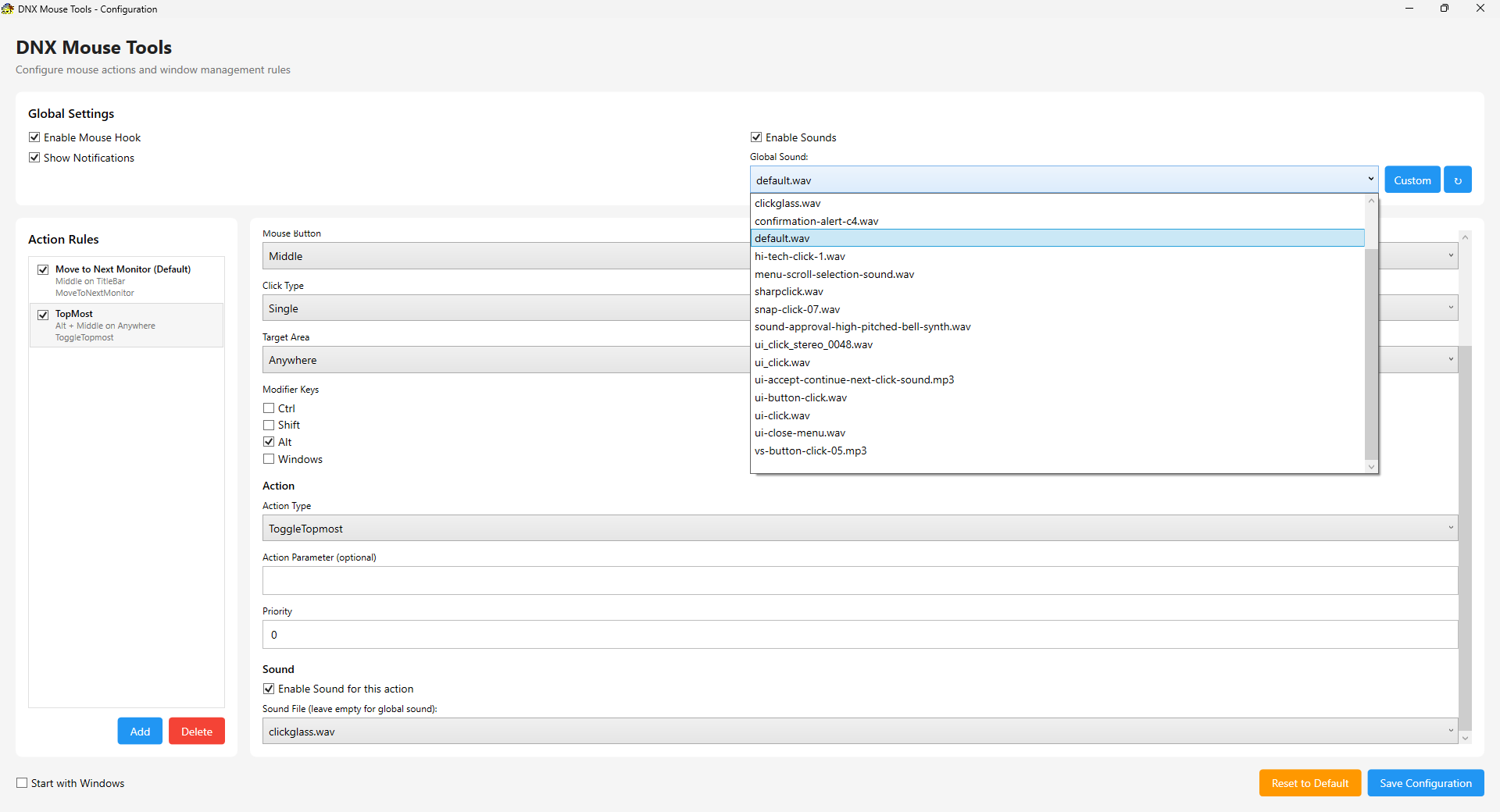
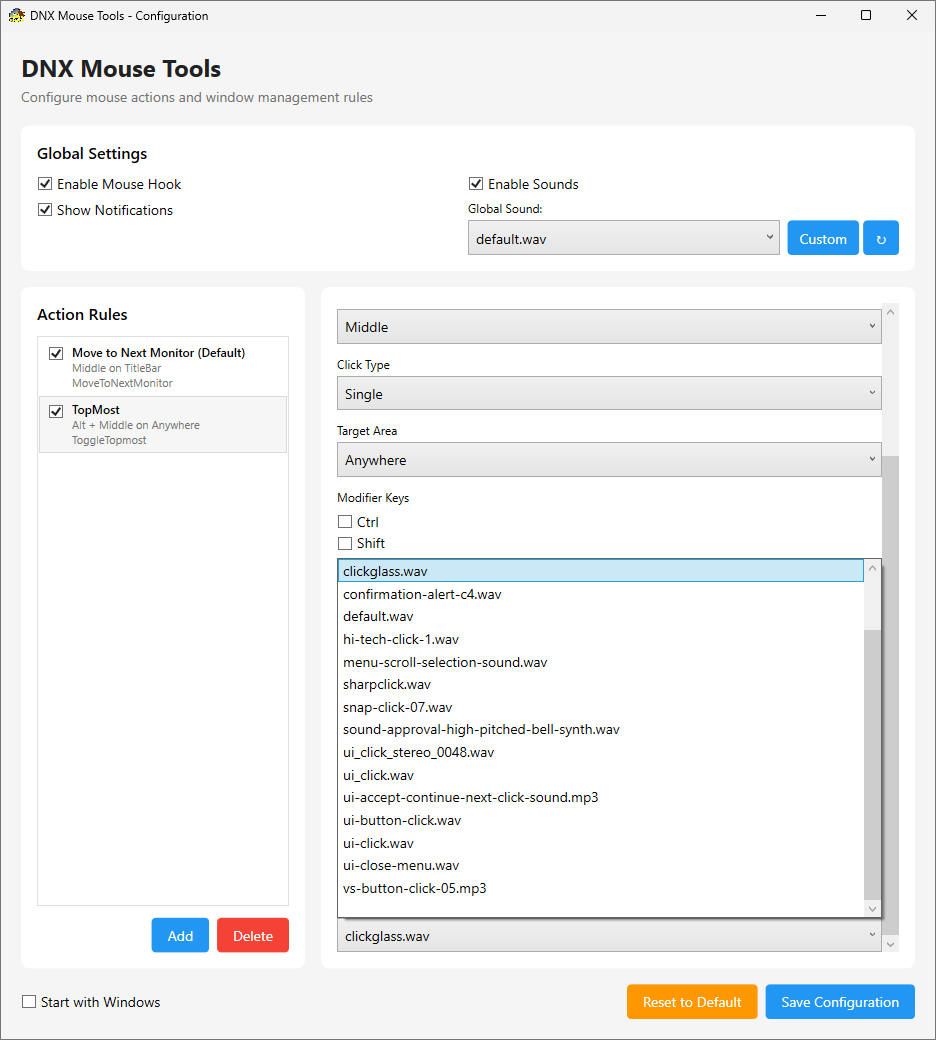
- Audio Feedback - Optional sounds (.wav, .mp3, .wma) for visual confirmation
- Low Resource Usage - Efficient hook implementation, runs with <50MB RAM
- Single Executable - Self-contained, no .NET installation needed (69MB)
- Auto-Register - Creates Start Menu shortcut automatically on first run
How It Works
DNX Mouse Tools uses a low-level mouse hook to detect your configured actions. When you perform an action that matches a rule, the application executes the associated command.
Example Use Cases
Middle-click on title bar → Move to next monitorCtrl + Middle-click → Toggle always-on-topShift + Middle-click → Minimize windowAlt + Middle-click → Close window
Create your own combinations to match your workflow.
Getting Started
- Download
DNXMouseTools.exe - Run the executable (it starts in system tray)
- Right-click the tray icon → Configuration
- Enable "Enable Mouse Hook"
- Try the default rule: middle-click on any title bar to move the window to your next monitor
- (Optional) Create your own custom rules
⚠️ First Run: Windows may show a security warning. Click "More info" → "Run anyway". This is normal for new applications.
Configuration
Auto-Registry
On first run, DNX Mouse Tools extracts a config.ini file. If AutoRegistry = true, it creates a shortcut in Start Menu → DNX.Projects → DNX Mouse Tools.
Command-line options:
DNXMouseTools.exe --register- Create Start Menu shortcutDNXMouseTools.exe --unregister- Remove Start Menu shortcut
Custom Sounds
Create a Sounds folder next to the executable and add .wav, .mp3, or .wma files. They'll appear in the sound selection dropdown.
Configuration Files
- Rules:
%APPDATA%\DNXMouseTools\config.json - Auto-register:
config.ini(next to executable)
System Requirements
- OS: Windows 10/11 (64-bit)
- Disk: ~70 MB
- RAM: Minimal (<50 MB)
- Permissions: Administrator recommended for global hook
- .NET: Not required (self-contained)
DNXAutoHub Integration
DNX Mouse Tools is part of the DNX ecosystem and supports integration with DNX Master Manager. When running alongside other DNX apps, they consolidate into a single system tray icon for a cleaner desktop.
Works perfectly standalone too - integration is optional.
Troubleshooting
Hook not working? Enable "Enable Mouse Hook" in configuration and run as Administrator.
Sounds not playing? Check "Enable Sounds" is enabled and sound files are in the Sounds folder.
"Already running" message? Only one instance can run at a time. Check system tray.
Support the Project
If you found this tool useful, consider supporting its development:
Found a bug? Have suggestions? Leave a comment on the project page.
Visit dnxprojects.itch.io for more DNX tools and applications.
© 2025 DNX.Projects | Version 1.0.0
Built with .NET 8.0 and WPF | Free and open for personal use
Download
Click download now to get access to the following files:
Leave a comment
Log in with itch.io to leave a comment.